Objective
This article will explain how to perform operations on Active Directory (AD) using C#. In this step-by-step tutorial, I will build a class library (DLL) project that will perform all the AD Operations and then you can use this class library in any application to use this functionality.
Basic introduction of Active Directory is provided and code examples for operations like
<!--[if !supportLists]-->1. <!--[endif]-->Finding user by login name
<!--[if !supportLists]-->2. <!--[endif]-->Finding user by Name
<!--[if !supportLists]-->3. <!--[endif]-->Finding user by First Name
<!--[if !supportLists]-->4. <!--[endif]-->Resolving AD Group in users etc
What is Active Directory
This is a Directory structure used in Windows for storing information about networks and domains. This was first used in Windows 2000. This is a hierarchical structure which helps in organizing information on objects. In lay term it is used to store user information, network information in an organization.
Solution Explorer for the Active Directory Helper Class library
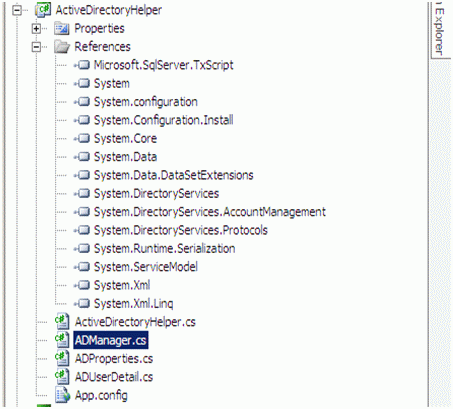
ActiveDirectoryHelperis the main working class. This class will contain all the functions for various operations on AD. Other classes are helping class to perform operations and being used in ActiveDirectoryHelperclass. After adding DLL of this project, at the client side object of ActiveDirectory class will get created and the function will get called.
Diving into code to Perform Operations
Step 1
Create a new project by selecting project template Class Library.
Step 2
Add below references to the project
System.DirectoryServices
System.DirectoryServices.AccountManagement
System.DirectoryServices.Protocols.
System.Configuration
Step 3
Add an Application Configuration file to project. And add App setting for
<!--[if !supportLists]-->1. <!--[endif]-->LDAP User Name
<!--[if !supportLists]-->2. <!--[endif]-->LDAP Password
<!--[if !supportLists]-->3. <!--[endif]-->LDAP Path
So App.Config file will look like below,
App.Config
<?xml version="1.0" encoding="utf-8" ?>
<configuration>
<appSettings>
<add key="LDAPPassword" value="xxxPasswordxxx" />
<add key="LDAPPath" value="LDAP://domain/DC=xxx,DC=com" />
<add key="LDAPUser" value="xxxUserxxx" />
</appSettings>
</configuration>
Note: Give user name, password and path according to your LDAP
Step 4. Creating ADUser class
Create or add a class in the project for ADUser details. This class will have the properties corresponding to the information of the AD User.
<!--[if !supportLists]-->1. <!--[endif]-->This class has read only properties for fetching First Name, Last Name, City, Login Name etc.
<!--[if !supportLists]-->2. <!--[endif]-->Constructor of the class is taking one parameter of type DirectoryEntry class.
<!--[if !supportLists]-->3. <!--[endif]-->In Constructor all the information about ADUser is getting fetched using static class ADProperties.
<!--[if !supportLists]-->4. <!--[endif]-->There are two static functions inside this class. GetUser and GetProperty
<!--[if !supportLists]-->5. <!--[endif]-->Get Property is returning a string which holds property of AD User.
<!--[if !supportLists]-->6. <!--[endif]-->GetUser static function is returning anADUser.
ADUserDetail.cs
using System;
usingSystem.Collections.Generic;
usingSystem.Linq;
usingSystem.Text;
usingSystem.DirectoryServices;
namespaceActiveDirectoryHelper
{
public class ADUserDetail
{
private String _firstName;
private String _middleName;
private String _lastName;
private String _loginName;
private String _loginNameWithDomain;
private String _streetAddress;
private String _city;
private String _state;
private String _postalCode;
private String _country;
private String _homePhone;
private String _extension;
private String _mobile;
private String _fax;
private String _emailAddress;
private String _title;
private String _company;
private String _manager;
private String_managerName;
private String _department;
public String Department
{
get{ return _department; }
}
public String FirstName
{
get{ return _firstName; }
}
public StringMiddleName
{
get{ return _middleName; }
}
public String LastName
{
get{ return _lastName; }
}
public String LoginName
{
get{ return _loginName; }
}
public String LoginNameWithDomain
{
get{ return _loginNameWithDomain; }
}
public String StreetAddress
{
get{ return _streetAddress; }
}
public String City
{
get{ return _city; }
}
public String State
{
get{ return _state; }
}
public String PostalCode
{
get{ return _postalCode; }
}
public String Country
{
get{ return _country; }
}
public String HomePhone
{
get{ return _homePhone; }
}
public String Extension
{
get{ return _extension; }
}
public StringMobile
{
get{ return _mobile; }
}
public String Fax
{
get{ return _fax; }
}
public String EmailAddress
{
get{ return _emailAddress; }
}
public String Title
{
get{ return _title; }
}
public String Company
{
get{ return _company; }
}
public ADUserDetail Manager
{
get
{
if (!String.IsNullOrEmpty(_managerName))
{
ActiveDirectoryHelperad = new ActiveDirectoryHelper();
returnad.GetUserByFullName(_managerName);
}
return null;
}
}
public String ManagerName
{
get{ return _managerName; }
}
privateADUserDetail(DirectoryEntry directoryUser)
{
StringdomainAddress;
StringdomainName;
_firstName = GetProperty(directoryUser, ADProperties.FIRSTNAME);
_middleName = GetProperty(directoryUser, ADProperties.MIDDLENAME);
_lastName = GetProperty(directoryUser, ADProperties.LASTNAME);
_loginName = GetProperty(directoryUser,ADProperties.LOGINNAME);
StringuserPrincipalName = GetProperty(directoryUser, ADProperties.USERPRINCIPALNAME);
if(!string.IsNullOrEmpty(userPrincipalName))
{
domainAddress = userPrincipalName.Split('@')[1];
}
else
{
domainAddress = String.Empty;
}
if(!string.IsNullOrEmpty(domainAddress))
{
domainName = domainAddress.Split('.').First();
}
else
{
domainName = String.Empty;
}
_loginNameWithDomain = String.Format(@"{0}\{1}", domainName, _loginName);
_streetAddress = GetProperty(directoryUser, ADProperties.STREETADDRESS);
_city = GetProperty(directoryUser, ADProperties.CITY);
_state = GetProperty(directoryUser,ADProperties.STATE);
_postalCode = GetProperty(directoryUser, ADProperties.POSTALCODE);
_country = GetProperty(directoryUser, ADProperties.COUNTRY);
_company = GetProperty(directoryUser, ADProperties.COMPANY);
_department = GetProperty(directoryUser, ADProperties.DEPARTMENT);
_homePhone = GetProperty(directoryUser,ADProperties.HOMEPHONE);
_extension = GetProperty(directoryUser, ADProperties.EXTENSION);
_mobile = GetProperty(directoryUser, ADProperties.MOBILE);
_fax = GetProperty(directoryUser, ADProperties.FAX);
_emailAddress = GetProperty(directoryUser,ADProperties.EMAILADDRESS);
_title = GetProperty(directoryUser,ADProperties.TITLE);
_manager = GetProperty(directoryUser, ADProperties.MANAGER);
if(!String.IsNullOrEmpty(_manager))
{
String[] managerArray = _manager.Split(',');
_managerName = managerArray[0].Replace("CN=", "");
}
}
private static StringGetProperty(DirectoryEntry userDetail, String propertyName)
{
if(userDetail.Properties.Contains(propertyName))
{
returnuserDetail.Properties[propertyName][0].ToString();
}
else
{
return string.Empty;
}
}
public static ADUserDetailGetUser(DirectoryEntry directoryUser)
{
return new ADUserDetail(directoryUser);
}
}
}
Step 5: Creating ADProperties class
Create or add a class in the project for ADProperties. This class will have the properties corresponding to the information of the AD User. This is a static class. This class is having all the properties as constant string for ADUser. This class is giving readable name to all the properties of user details.
ADProperties.cs
using System;
usingSystem.Collections.Generic;
usingSystem.Linq;
usingSystem.Text;
namespaceActiveDirectoryHelper
{
public static class ADProperties
{
public const StringOBJECTCLASS = "objectClass";
public const String CONTAINERNAME = "cn";
public const StringLASTNAME = "sn";
public const StringCOUNTRYNOTATION = "c";
public const String CITY = "l";
public const String STATE = "st";
public const String TITLE = "title";
public const StringPOSTALCODE = "postalCode";
public const StringPHYSICALDELIVERYOFFICENAME = "physicalDeliveryOfficeName";
public const StringFIRSTNAME = "givenName";
public const StringMIDDLENAME = "initials";
public const StringDISTINGUISHEDNAME = "distinguishedName";
public const StringINSTANCETYPE = "instanceType";
public const StringWHENCREATED = "whenCreated";
public const StringWHENCHANGED = "whenChanged";
public const StringDISPLAYNAME = "displayName";
public const StringUSNCREATED = "uSNCreated";
public const StringMEMBEROF = "memberOf";
public const StringUSNCHANGED = "uSNChanged";
public const StringCOUNTRY = "co";
public const String DEPARTMENT = "department";
public const StringCOMPANY = "company";
public const StringPROXYADDRESSES = "proxyAddresses";
public const StringSTREETADDRESS = "streetAddress";
public const String DIRECTREPORTS = "directReports";
public const String NAME = "name";
public const StringOBJECTGUID = "objectGUID";
public const StringUSERACCOUNTCONTROL = "userAccountControl";
public const StringBADPWDCOUNT = "badPwdCount";
public const StringCODEPAGE = "codePage";
public const StringCOUNTRYCODE = "countryCode";
public const StringBADPASSWORDTIME = "badPasswordTime";
public const String LASTLOGOFF = "lastLogoff";
public const String LASTLOGON = "lastLogon";
public const StringPWDLASTSET = "pwdLastSet";
public const StringPRIMARYGROUPID = "primaryGroupID";
public const StringOBJECTSID = "objectSid";
public const StringADMINCOUNT = "adminCount";
public const String ACCOUNTEXPIRES = "accountExpires";
public const StringLOGONCOUNT = "logonCount";
public const StringLOGINNAME = "sAMAccountName";
public const StringSAMACCOUNTTYPE = "sAMAccountType";
public const StringSHOWINADDRESSBOOK = "showInAddressBook";
public const StringLEGACYEXCHANGEDN = "legacyExchangeDN";
public const StringUSERPRINCIPALNAME = "userPrincipalName";
public const StringEXTENSION = "ipPhone";
public const StringSERVICEPRINCIPALNAME = "servicePrincipalName";
public const StringOBJECTCATEGORY = "objectCategory";
public const StringDSCOREPROPAGATIONDATA = "dSCorePropagationData";
public const StringLASTLOGONTIMESTAMP = "lastLogonTimestamp";
public const StringEMAILADDRESS = "mail";
public const StringMANAGER = "manager";
public const StringMOBILE = "mobile";
public const String PAGER = "pager";
public const String FAX ="facsimileTelephoneNumber";
public const StringHOMEPHONE = "homePhone";
public const StringMSEXCHUSERACCOUNTCONTROL = "msExchUserAccountControl";
public const StringMDBUSEDEFAULTS = "mDBUseDefaults";
public const StringMSEXCHMAILBOXSECURITYDESCRIPTOR = "msExchMailboxSecurityDescriptor";
public const StringHOMEMDB = "homeMDB";
public const StringMSEXCHPOLICIESINCLUDED = "msExchPoliciesIncluded";
public const StringHOMEMTA = "homeMTA";
public const String MSEXCHRECIPIENTTYPEDETAILS = "msExchRecipientTypeDetails";
public const StringMAILNICKNAME = "mailNickname";
public const StringMSEXCHHOMESERVERNAME = "msExchHomeServerName";
public const StringMSEXCHVERSION = "msExchVersion";
public const String MSEXCHRECIPIENTDISPLAYTYPE = "msExchRecipientDisplayType";
public const StringMSEXCHMAILBOXGUID = "msExchMailboxGuid";
public const StringNTSECURITYDESCRIPTOR = "nTSecurityDescriptor";
}
}
Step 6. Creating ActiveDirectoryHelper class
<!--[if !supportLists]-->1. <!--[endif]-->This class will have all the function to perform operations to Active Directory.
<!--[if !supportLists]-->2. <!--[endif]-->There are four properties in the class
LDAPPath property
This property is reading the LDAPPath from config file.
private StringLDAPPath
{
get
{
return ConfigurationManager.AppSettings["LDAPPath"];
}
}
LDAPUser property
This property is reading the LDAP user from the config file.
private StringLDAPUser
{
get
{
return ConfigurationManager.AppSettings["LDAPUser"];
}
}
LDAPPassword property
This property is reading the LDAP Password from the config file.
private StringLDAPPassword
{
get
{
return ConfigurationManager.AppSettings["LDAPPassword"];
}
}
Search Root Property
This Property is initializing the Directory entry by passing the LDAPUser, LDAPPAth, and LDAPPassword. This property is creating a new instance DirectoryEntry and returning that.
private DirectoryEntrySearchRoot
{
get
{
if(_directoryEntry == null)
{
_directoryEntry = new DirectoryEntry(LDAPPath, LDAPUser, LDAPPassword, AuthenticationTypes.Secure);
}
return_directoryEntry;
}
}
Various operations in ActiveDirectoryHelper class
Get User by Full Name
This function will take a full name as input parameter and return AD user corresponding to that.
public ADUserDetailGetUserByFullName(String userName)
{
try
{
_directoryEntry = null;
DirectorySearcherdirectorySearch = new DirectorySearcher(SearchRoot);
directorySearch.Filter = "(&(objectClass=user)(cn=" + userName + "))";
SearchResultresults = directorySearch.FindOne();
if(results != null)
{
DirectoryEntryuser = new DirectoryEntry(results.Path, LDAPUser, LDAPPassword);
return ADUserDetail.GetUser(user);
}
else
{
return null;
}
}
catch(Exception ex)
{
return null;
}
}
Get User by Login Name
This function will return AD user. This takes Login name as input parameter.
public ADUserDetail GetUserByLoginName(String userName)
{
try
{
_directoryEntry = null;
DirectorySearcherdirectorySearch = new DirectorySearcher(SearchRoot);
directorySearch.Filter = "(&(objectClass=user)(SAMAccountName="+ userName + "))";
SearchResultresults = directorySearch.FindOne();
if(results != null)
{
DirectoryEntryuser = new DirectoryEntry(results.Path, LDAPUser, LDAPPassword);
return ADUserDetail.GetUser(user);
}
return null;
}
catch(Exception ex)
{
return null;
}
}
Get Users by from a AD Group by Group Name
This function will take a group name as input and return list of AD User in that group.
public List<ADUserDetail> GetUserFromGroup(String groupName)
{
List<ADUserDetail> userlist = new List<ADUserDetail>();
try
{
_directoryEntry = null;
DirectorySearcherdirectorySearch = new DirectorySearcher(SearchRoot);
directorySearch.Filter = "(&(objectClass=group)(SAMAccountName="+ groupName + "))";
SearchResultresults = directorySearch.FindOne();
if(results != null)
{
DirectoryEntrydeGroup = new DirectoryEntry(results.Path, LDAPUser, LDAPPassword);
System.DirectoryServices.PropertyCollection pColl = deGroup.Properties;
intcount = pColl["member"].Count;
for(int i = 0; i < count; i++)
{
string respath = results.Path;
string[] pathnavigate = respath.Split("CN".ToCharArray());
respath = pathnavigate[0];
string objpath = pColl["member"][i].ToString();
string path = respath + objpath;
DirectoryEntry user = new DirectoryEntry(path, LDAPUser, LDAPPassword);
ADUserDetail userobj = ADUserDetail.GetUser(user);
userlist.Add(userobj);
user.Close();
}
}
returnuserlist;
}
catch(Exception ex)
{
returnuserlist;
}
}
Get Users and Group by from a AD basis on starting with string
This function will return Users and Group information from AD on basis of first characters. Wild character * is used to filter the criteria.
public List<ADUserDetail>GetUsersByFirstName(string fName)
{
//UserProfile user;
List<ADUserDetail> userlist = new List<ADUserDetail>();
stringfilter = "";
_directoryEntry = null;
DirectorySearcherdirectorySearch = new DirectorySearcher(SearchRoot);
directorySearch.Asynchronous = true;
directorySearch.CacheResults = true;
//directorySearch.Filter = "(&(objectClass=user)(SAMAccountName=" + userName + "))";
filter = string.Format("(givenName={0}*", fName);
//filter = "(&(objectClass=user)(objectCategory=person)" + filter + ")";
filter = "(&(objectClass=user)(objectCategory=person)(givenName="+fName+"*))";
directorySearch.Filter = filter;
SearchResultCollectionuserCollection = directorySearch.FindAll();
foreach(SearchResult users inuserCollection)
{
DirectoryEntryuserEntry = new DirectoryEntry(users.Path, LDAPUser, LDAPPassword);
ADUserDetailuserInfo = ADUserDetail.GetUser(userEntry);
userlist.Add(userInfo);
}
directorySearch.Filter = "(&(objectClass=group)(SAMAccountName="+fName + "*))";
SearchResultCollectionresults = directorySearch.FindAll();
if (results !=null)
{
foreach(SearchResult r inresults)
{
DirectoryEntry deGroup = new DirectoryEntry(r.Path, LDAPUser, LDAPPassword);
// ADUserDetail dhan = new ADUserDetail();
ADUserDetail agroup = ADUserDetail.GetUser(deGroup);
userlist.Add(agroup);
}
}
returnuserlist;
}
Adding User to Active Directory Group
This function will take a user login name and add this to a group of AD.
public boolAddUserToGroup(string userlogin, string groupName)
{
try
{
_directoryEntry = null;
ADManageradmanager = new ADManager(LDAPDomain, LDAPUser, LDAPPassword);
admanager.AddUserToGroup(userlogin, groupName);
return true;
}
catch(Exception ex)
{
return false;
}
}
Removing User to Active Directory Group
This function will take a user login name and remove this to a group of AD.
public bool RemoveUserToGroup(stringuserlogin, string groupName)
{
try
{
_directoryEntry = null;
ADManageradmanager = new ADManager("xxx", LDAPUser, LDAPPassword);
admanager.RemoveUserFromGroup(userlogin, groupName);
return true;
}
catch(Exception ex)
{
return false;
}
}
In above two functions ADManagerclass is being used for adding and removing user in AD.
ADManager.cs
using System;
usingSystem.Collections.Generic;
usingSystem.Linq;
usingSystem.Text;
usingSystem.DirectoryServices.AccountManagement;
namespaceActiveDirectoryHelper
{
public class ADManager
{
PrincipalContextcontext;
publicADManager()
{
context = new PrincipalContext(ContextType.Machine,"xxx", "xxx","xxx");
}
publicADManager(string domain, string container)
{
context = new PrincipalContext(ContextType.Domain, domain, container);
}
publicADManager(string domain, string username, stringpassword)
{
context = new PrincipalContext(ContextType.Domain, username, password);
}
public bool AddUserToGroup(stringuserName, string groupName)
{
booldone = false;
GroupPrincipalgroup = GroupPrincipal.FindByIdentity(context, groupName);
if(group == null)
{
group = new GroupPrincipal(context, groupName);
}
UserPrincipaluser = UserPrincipal.FindByIdentity(context, userName);
if(user != null & group != null)
{
group.Members.Add(user);
group.Save();
done = (user.IsMemberOf(group));
}
returndone;
}
public bool RemoveUserFromGroup(stringuserName, string groupName)
{
booldone = false;
UserPrincipaluser = UserPrincipal.FindByIdentity(context, userName);
GroupPrincipalgroup = GroupPrincipal.FindByIdentity(context, groupName);
if(user != null & group != null)
{
group.Members.Remove(user);
group.Save();
done = !(user.IsMemberOf(group));
}
returndone;
}
}
}
This is the way all the operation could be perform on the AD.
Complete code for ActiveDirectoryHelper.cs class
using System;
usingSystem.Collections.Generic;
usingSystem.Linq;
usingSystem.Text;
usingSystem.DirectoryServices;
usingSystem.Configuration;
namespaceActiveDirectoryHelper
{
public class ActiveDirectoryHelper
{
private DirectoryEntry_directoryEntry = null;
private DirectoryEntrySearchRoot
{
get
{
if(_directoryEntry == null)
{
_directoryEntry = new DirectoryEntry(LDAPPath, LDAPUser, LDAPPassword, AuthenticationTypes.Secure);
}
return_directoryEntry;
}
}
private StringLDAPPath
{
get
{
return ConfigurationManager.AppSettings["LDAPPath"];
}
}
private StringLDAPUser
{
get
{
return ConfigurationManager.AppSettings["LDAPUser"];
}
}
private StringLDAPPassword
{
get
{
return ConfigurationManager.AppSettings["LDAPPassword"];
}
}
private StringLDAPDomain
{
get
{
return ConfigurationManager.AppSettings["LDAPDomain"];
}
}
internal ADUserDetailGetUserByFullName(String userName)
{
try
{
_directoryEntry = null;
DirectorySearcherdirectorySearch = new DirectorySearcher(SearchRoot);
directorySearch.Filter = "(&(objectClass=user)(cn=" + userName + "))";
SearchResultresults = directorySearch.FindOne();
if(results != null)
{
DirectoryEntryuser = new DirectoryEntry(results.Path, LDAPUser, LDAPPassword);
return ADUserDetail.GetUser(user);
}
else
{
return null;
}
}
catch(Exception ex)
{
return null;
}
}
public ADUserDetailGetUserByLoginName(String userName)
{
try
{
_directoryEntry = null;
DirectorySearcherdirectorySearch = new DirectorySearcher(SearchRoot);
directorySearch.Filter = "(&(objectClass=user)(SAMAccountName="+ userName + "))";
SearchResultresults = directorySearch.FindOne();
if(results != null)
{
DirectoryEntryuser = new DirectoryEntry(results.Path, LDAPUser, LDAPPassword);
return ADUserDetail.GetUser(user);
}
return null;
}
catch(Exception ex)
{
return null;
}
}
/// <summary>
/// This function will take a DL or Group name and return list of users
/// </summary>
/// <param name="groupName"></param>
/// <returns></returns>
public List<ADUserDetail> GetUserFromGroup(String groupName)
{
List<ADUserDetail> userlist = new List<ADUserDetail>();
try
{
_directoryEntry = null;
DirectorySearcherdirectorySearch = new DirectorySearcher(SearchRoot);
directorySearch.Filter = "(&(objectClass=group)(SAMAccountName="+ groupName + "))";
SearchResultresults = directorySearch.FindOne();
if(results != null)
{
DirectoryEntrydeGroup = new DirectoryEntry(results.Path, LDAPUser, LDAPPassword);
System.DirectoryServices.PropertyCollection pColl = deGroup.Properties;
intcount = pColl["member"].Count;
for(int i = 0; i < count; i++)
{
string respath = results.Path;
string[] pathnavigate = respath.Split("CN".ToCharArray());
respath = pathnavigate[0];
stringobjpath = pColl["member"][i].ToString();
string path = respath + objpath;
DirectoryEntry user = new DirectoryEntry(path, LDAPUser, LDAPPassword);
ADUserDetail userobj = ADUserDetail.GetUser(user);
userlist.Add(userobj);
user.Close();
}
}
returnuserlist;
}
catch(Exception ex)
{
returnuserlist;
}
}
#region Get user with First Name
public List<ADUserDetail>GetUsersByFirstName(string fName)
{
//UserProfile user;
List<ADUserDetail> userlist = new List<ADUserDetail>();
stringfilter = "";
_directoryEntry = null;
DirectorySearcherdirectorySearch = new DirectorySearcher(SearchRoot);
directorySearch.Asynchronous = true;
directorySearch.CacheResults = true;
filter = string.Format("(givenName={0}*", fName);
// filter = "(&(objectClass=user)(objectCategory=person)(givenName="+fName+"*))";
directorySearch.Filter = filter;
SearchResultCollectionuserCollection = directorySearch.FindAll();
foreach(SearchResult users inuserCollection)
{
DirectoryEntryuserEntry = new DirectoryEntry(users.Path, LDAPUser, LDAPPassword);
ADUserDetailuserInfo = ADUserDetail.GetUser(userEntry);
userlist.Add(userInfo);
}
directorySearch.Filter = "(&(objectClass=group)(SAMAccountName="+fName + "*))";
SearchResultCollectionresults = directorySearch.FindAll();
if(results != null)
{
foreach(SearchResult r inresults)
{
DirectoryEntry deGroup = new DirectoryEntry(r.Path, LDAPUser, LDAPPassword);
ADUserDetail agroup = ADUserDetail.GetUser(deGroup);
userlist.Add(agroup);
}
}
returnuserlist;
}
#endregion
#region AddUserToGroup
public boolAddUserToGroup(string userlogin, string groupName)
{
try
{
_directoryEntry = null;
ADManageradmanager = new ADManager(LDAPDomain, LDAPUser, LDAPPassword);
admanager.AddUserToGroup(userlogin, groupName);
return true;
}
catch(Exception ex)
{
return false;
}
}
#endregion
#region RemoveUserToGroup
public boolRemoveUserToGroup(string userlogin, string groupName)
{
try
{
_directoryEntry = null;
ADManageradmanager = new ADManager("xxx", LDAPUser, LDAPPassword);
admanager.RemoveUserFromGroup(userlogin, groupName);
return true;
}
catch(Exception ex)
{
return false;
}
}
#endregion
}
}
How to use this class library
Just add DLL or reference of this project to your application and make an Instance of ActiveDirectoryHelperclass. After an instance is created, you may call the functions and properties to perform the operations on AD.


